> ## Documentation Index
> Fetch the complete documentation index at: https://vrchat-docs.moverse.ai/llms.txt
> Use this file to discover all available pages before exploring further.
# Camera Connection
To successfully connect and use your cameras in Moverse Studio, follow these steps to ensure a smooth setup and operation.
### Step 1: Launching Moverse Studio
* **Start Moverse Studio**: Launch Moverse Studio from the Moverse Hub. Ensure your cameras are properly connected before you begin.
 ### Step 2: Camera Selection and Connection
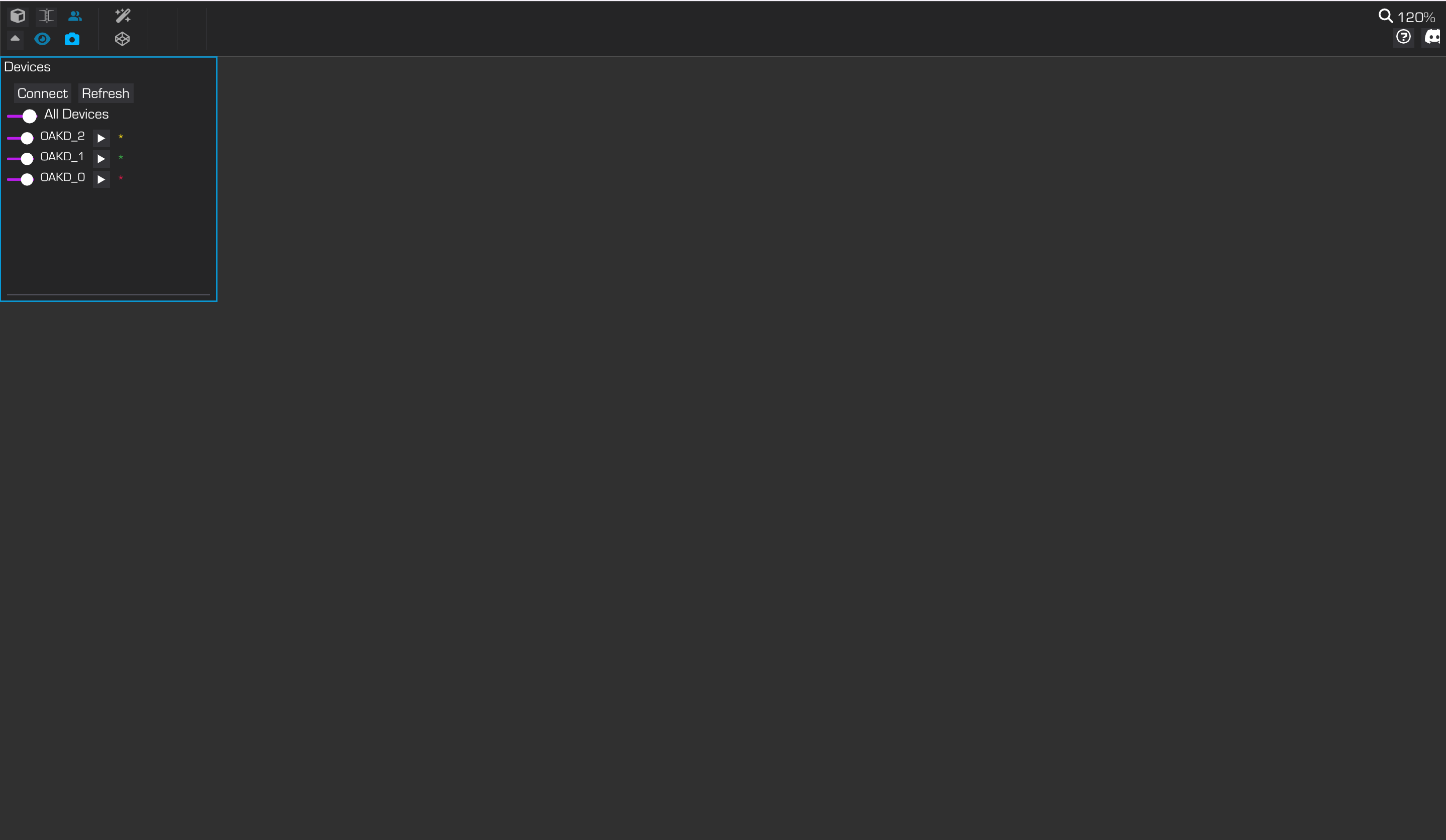
* **Locate Camera Display**: When Moverse Studio opens, your cameras, along with their names and metadata, will be displayed in the top-right corner of the user interface.
* **Discover All Cameras**: If one or more cameras are not visible, press "Refresh" to discover them.
* **Connect**: Press the 'Connect' button to start the connection process.
### Step 2: Camera Selection and Connection
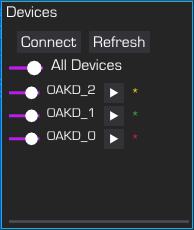
* **Locate Camera Display**: When Moverse Studio opens, your cameras, along with their names and metadata, will be displayed in the top-right corner of the user interface.
* **Discover All Cameras**: If one or more cameras are not visible, press "Refresh" to discover them.
* **Connect**: Press the 'Connect' button to start the connection process.
 ### Step 3: Streaming
* **View Streams**: The video streams will be visible in the viewer once it is set to 2D mode.
### Step 3: Streaming
* **View Streams**: The video streams will be visible in the viewer once it is set to 2D mode.
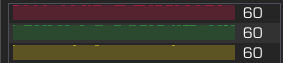
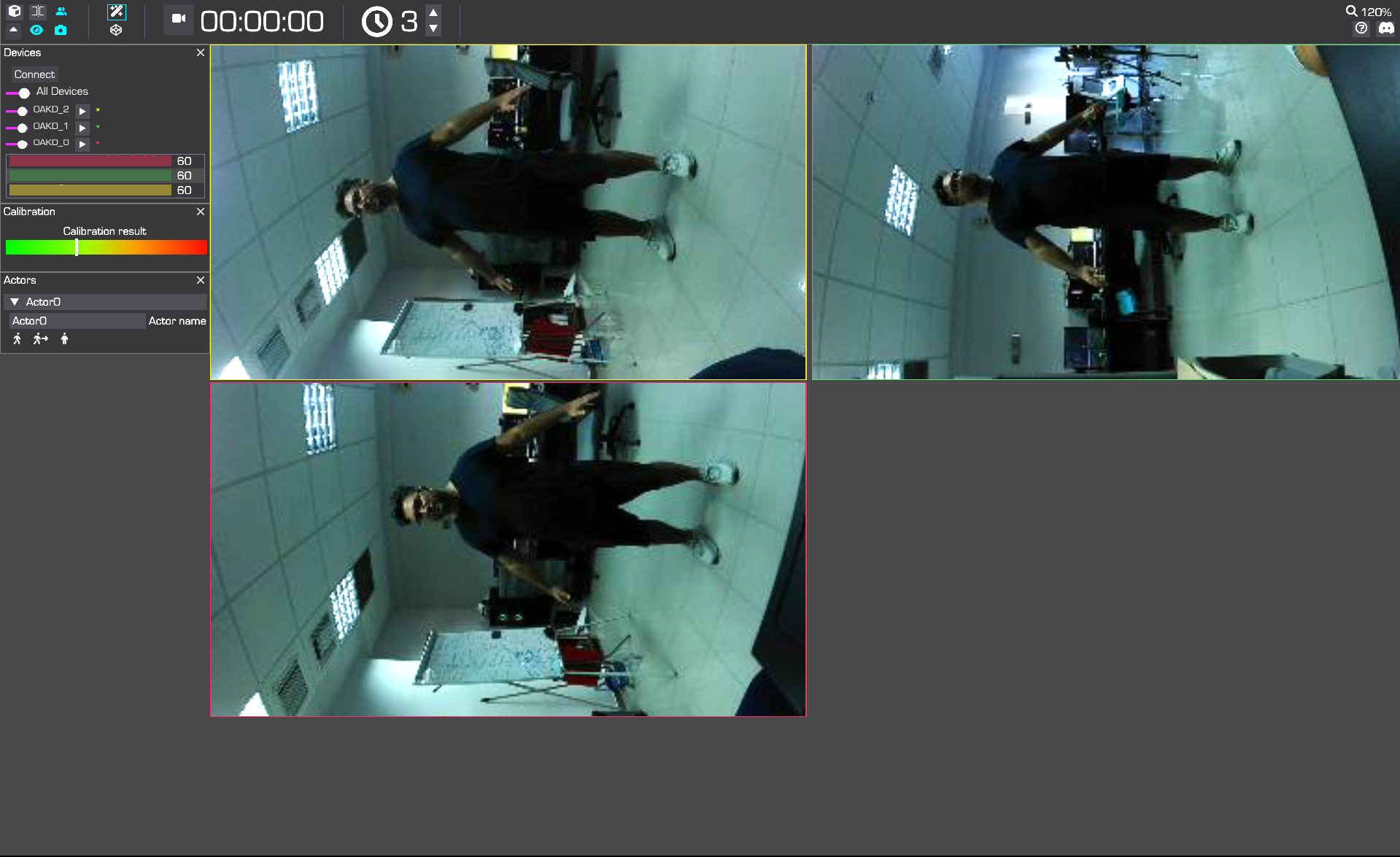 * **Check Streaming Status**: After a successful connection, the cameras will begin streaming. The colored FPS bars should be full, indicating normal operation at the camera's full frame rate.
 Follow these steps to ensure your cameras are connected correctly and streaming efficiently in Moverse Studio. If you encounter any issues during this process, refer to the troubleshooting section or contact our support team on the [#get-help](https://discord.com/channels/1069970354937806970/1069977121121894430).