> ## Documentation Index
> Fetch the complete documentation index at: https://vrchat-docs.moverse.ai/llms.txt
> Use this file to discover all available pages before exploring further.
# Motion Capture
> Capture up to two actors using Moverse Studio
After successfully calibrating the cameras, you are ready to start full-body capture. This guide outlines the steps needed before starting your VRChat session:
### Step 1: Enter Capturing Space
* Enter the designated capturing space.
### Step 2: Start Capture
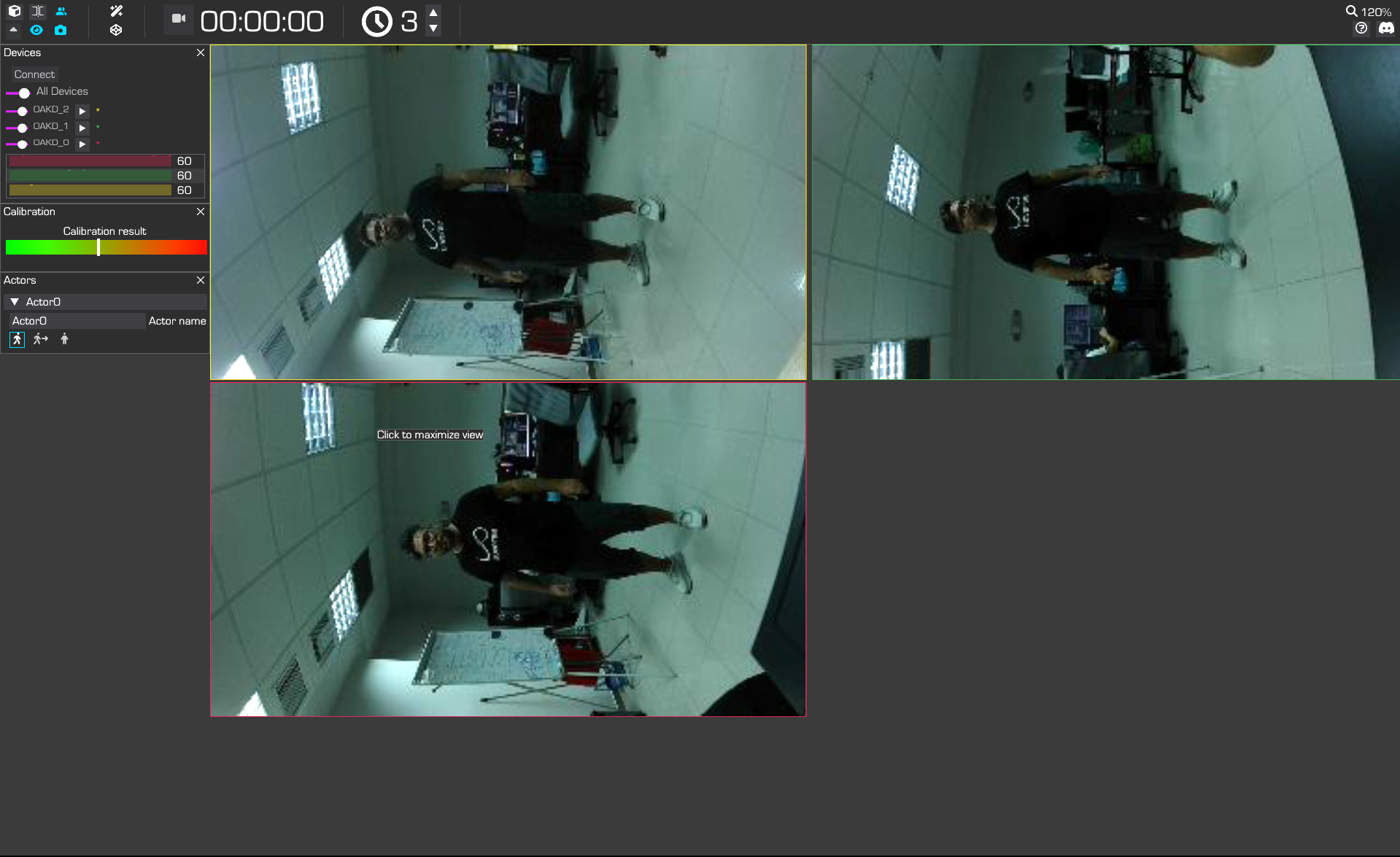
* Switch to the "Splits viewport" mode by clicking the double-bracket icon (2nd button from the top left) in Moverse Studio.
* Press the **Body Calibration** button .
* The user's body will instantly appear in the 3D viewer.
* Once your 3D body is visible, walk lightly inside the capturing space for 3-4 seconds.
### Step 3: Stabilize Capture with a Static Pose
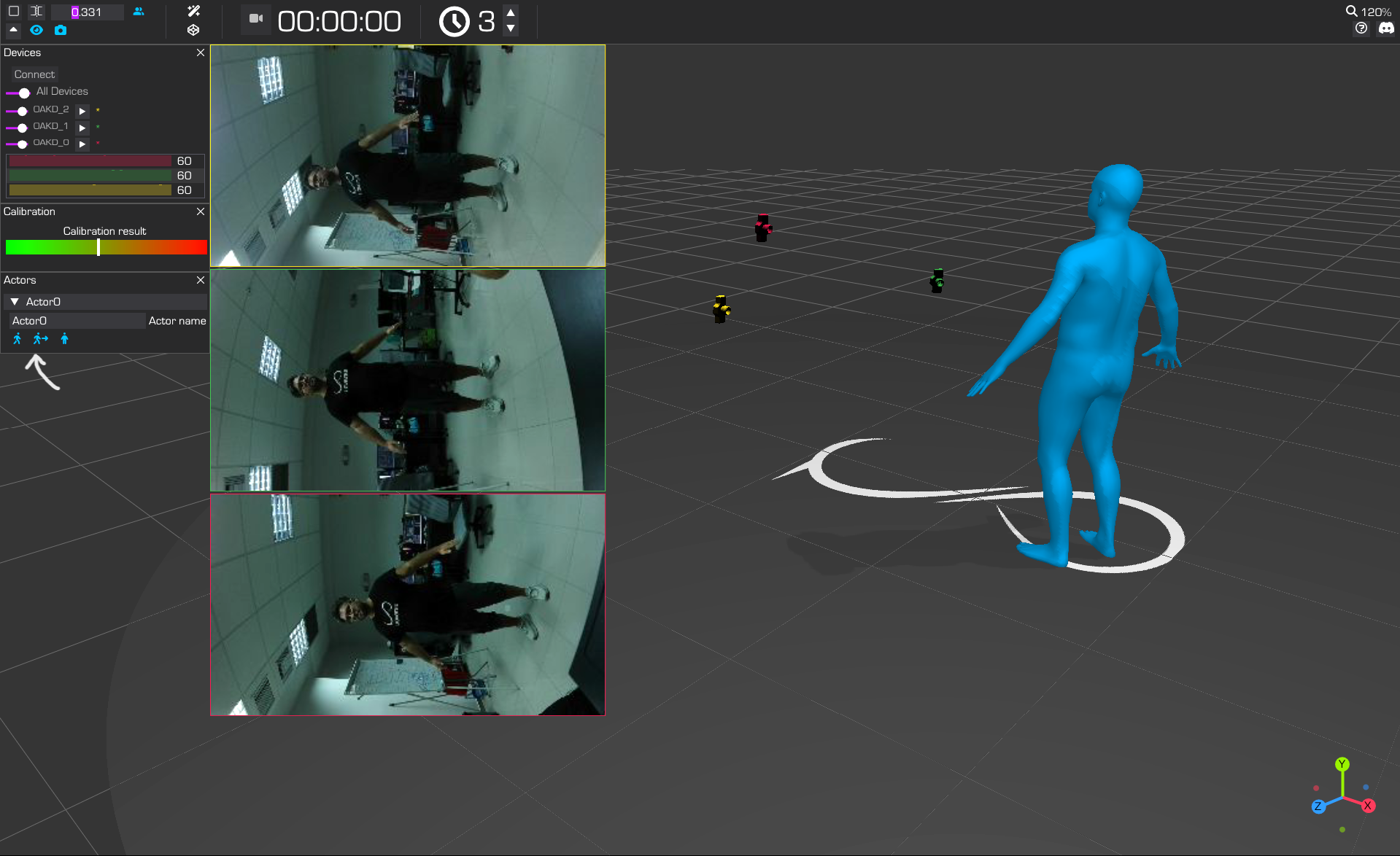
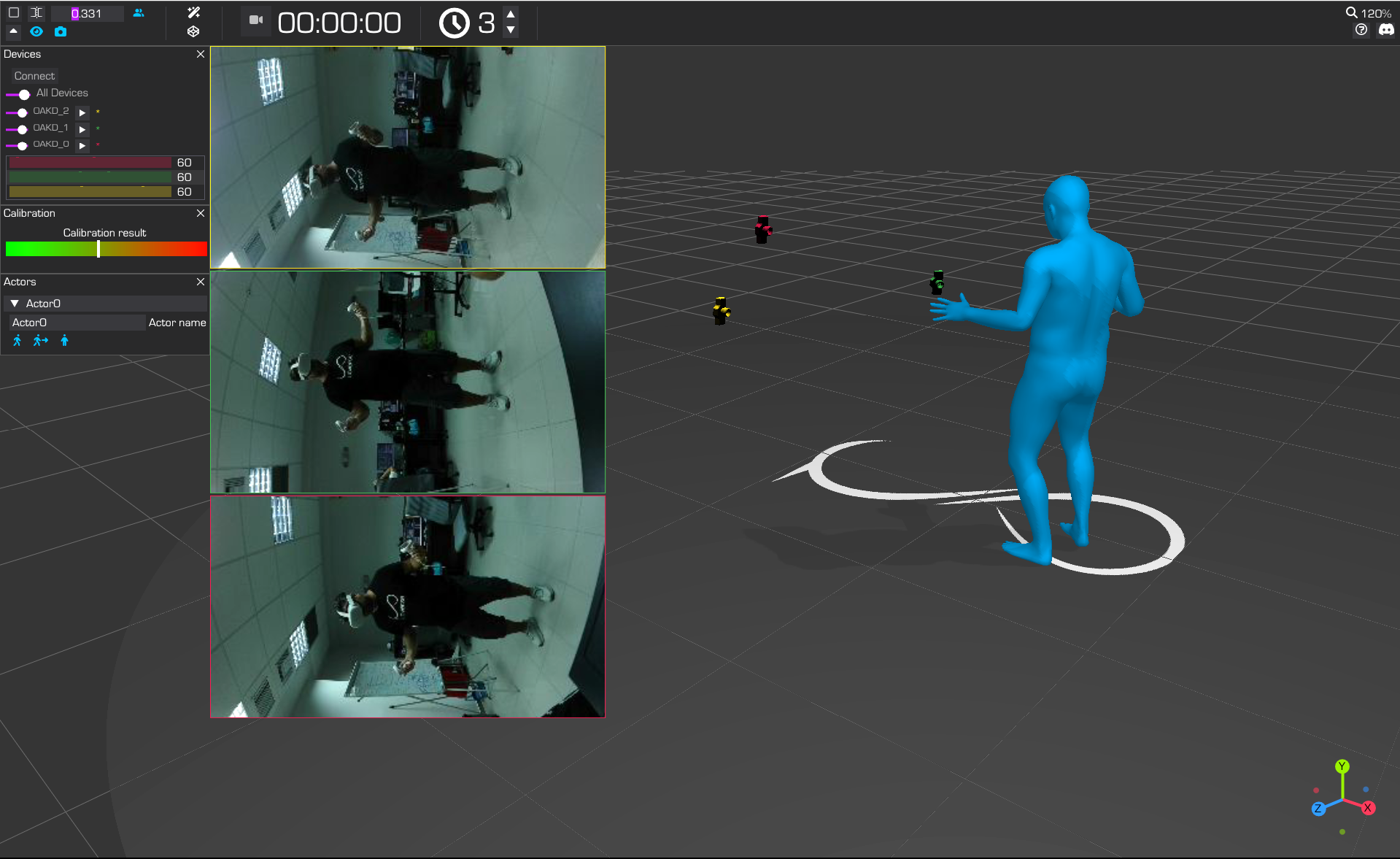
* Have the actor hold a static pose (like an A-pose) to stabilize tracking.
If you need more time to get into an A-pose, set the countdown timer to more than 3 seconds (timer icon in the top toolbar).
* Press the **Motion Tracking** button to lock tracking.
If you notice prolonged FPS drops after this step, you must repeat the body calibration process (Step 2).
### Step 4: Continuous Capturing
* The system is now ready to record your full-body motion.
## Calibrating for VRChat
Now you're ready to perform a Full-Body Tracking (FBT) calibration in the VRChat environment.
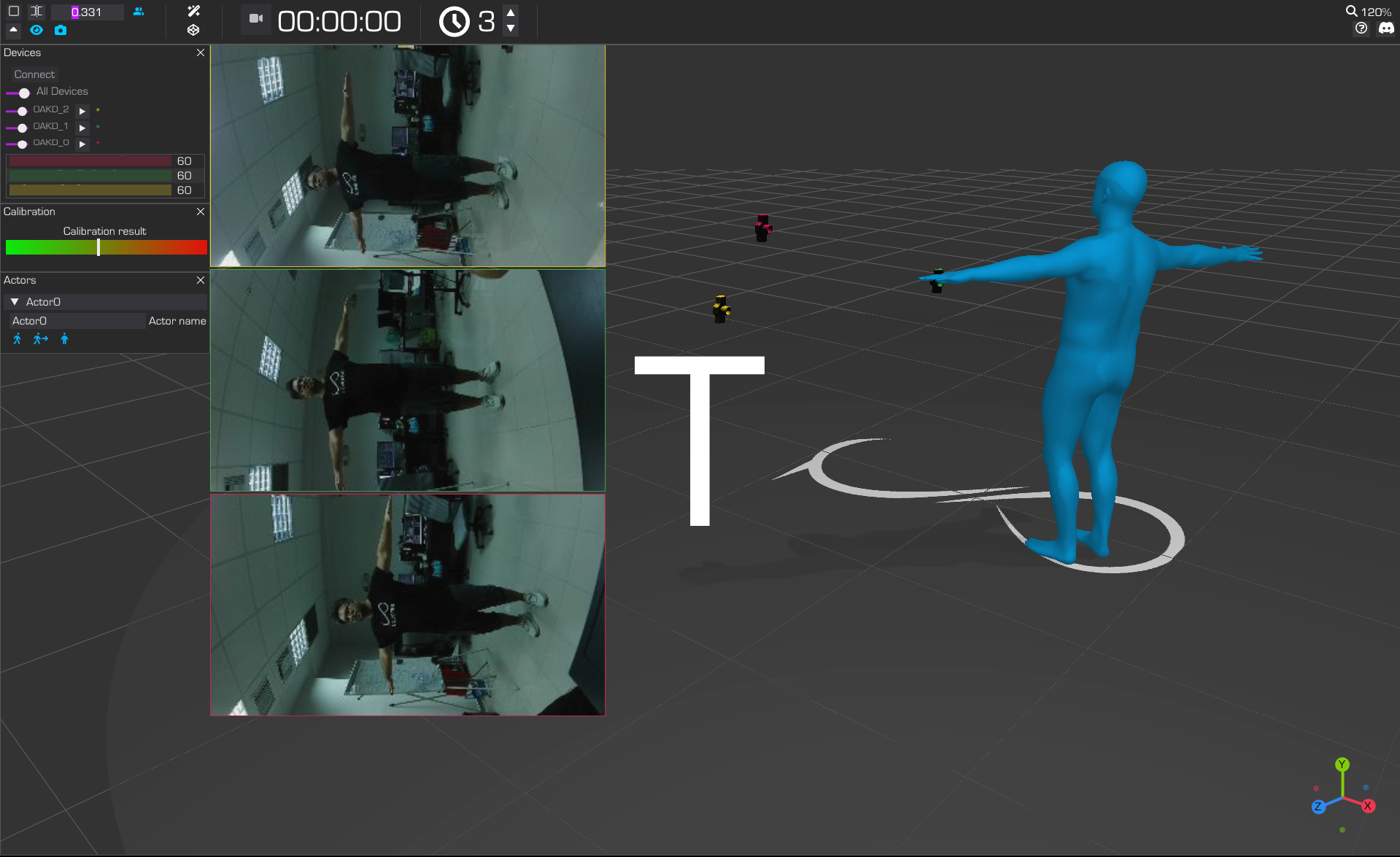
* Once continuous capture (Step 4) is active, Moverse Studio automatically begins searching for a T-pose.
* Put on your headset and grab the controllers. In the VRChat menu, find the FBT Calibration module — look for the **"Calibrate"** option at the bottom of the **Launch Pad**.
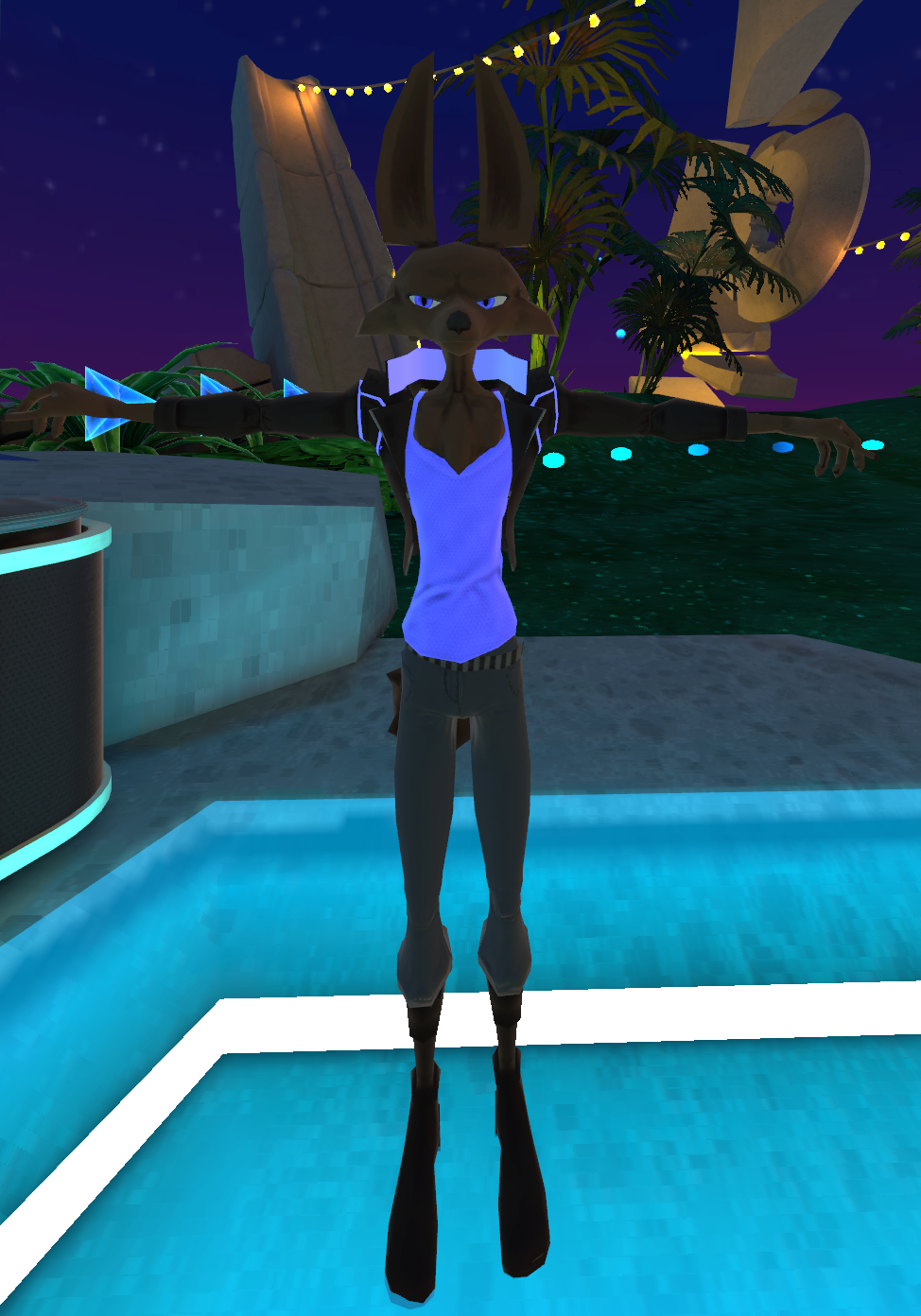
* Align your body with the avatar's **T-pose**. When you see the spheres' positions update, press both controller Triggers.
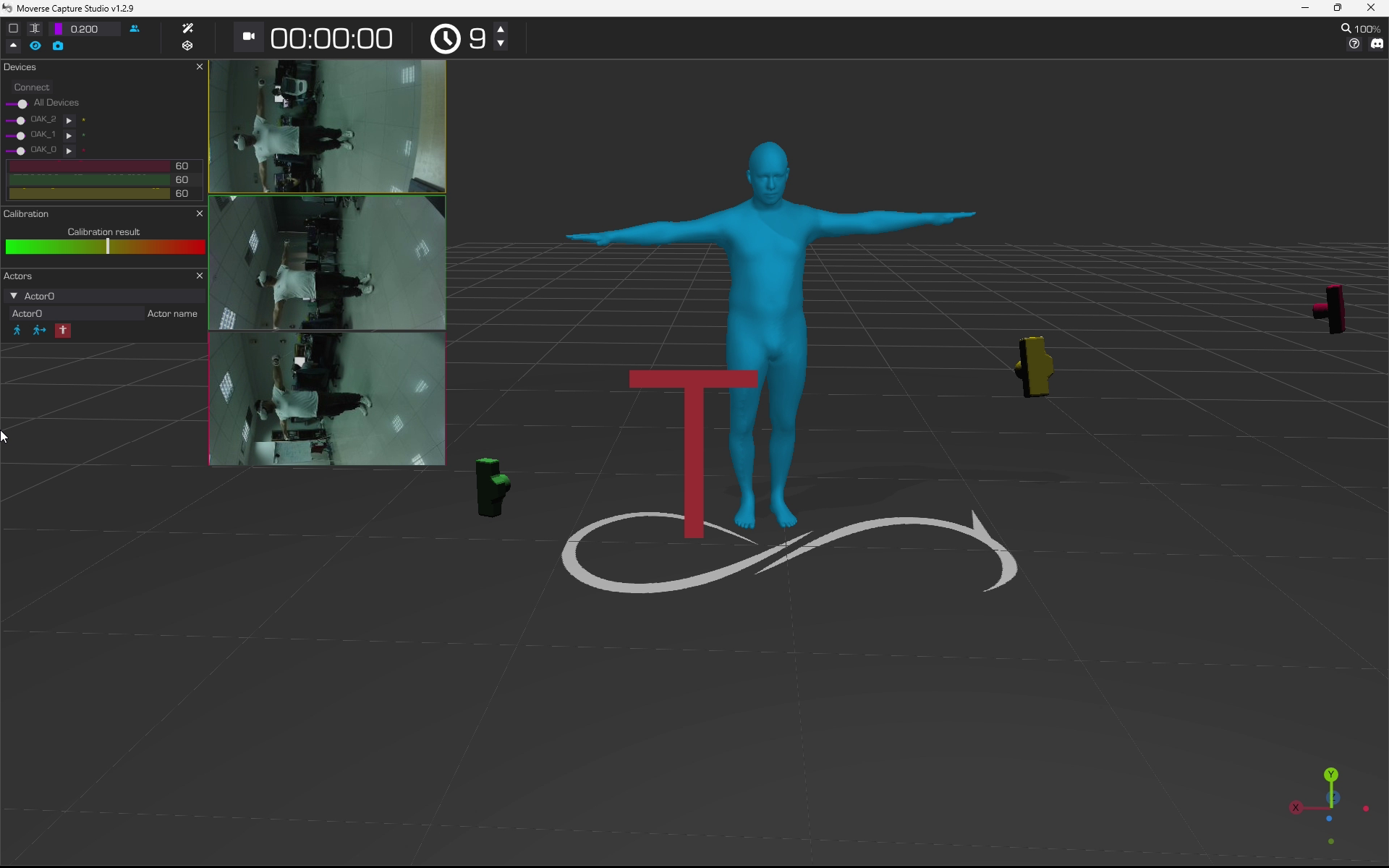
* Pressing the Triggers **locks** the T-pose calibration. In Moverse Studio, this is indicated by the T-pose button turning **red** (next to the "Motion Tracking" icon) and the 'T' icon overlaying the avatar also turning **red**.
* Lower your arms to your sides and stay still for 10 seconds to ensure that the VRChat and Moverse Capture avatars are aligned.
You must lower your arms and stay still for at least 10 seconds after FBT calibration to ensure proper avatar alignment.
* **To perform a new calibration:** First, unlock detection by pressing the **red T-pose button** in Moverse Studio. It will turn **cyan**, indicating the system is actively searching for a T-pose again.
### Summary
The following video shows the end-to-end process, from motion tracking (Step 3) to FBT calibration in VRChat, as seen from the Moverse Studio perspective:
You are ready to perform. Enjoy!
 ### Step 2: Start Capture
* Switch to the "Splits viewport" mode by clicking the double-bracket icon (2nd button from the top left) in Moverse Studio.
* Press the **Body Calibration** button
### Step 2: Start Capture
* Switch to the "Splits viewport" mode by clicking the double-bracket icon (2nd button from the top left) in Moverse Studio.
* Press the **Body Calibration** button 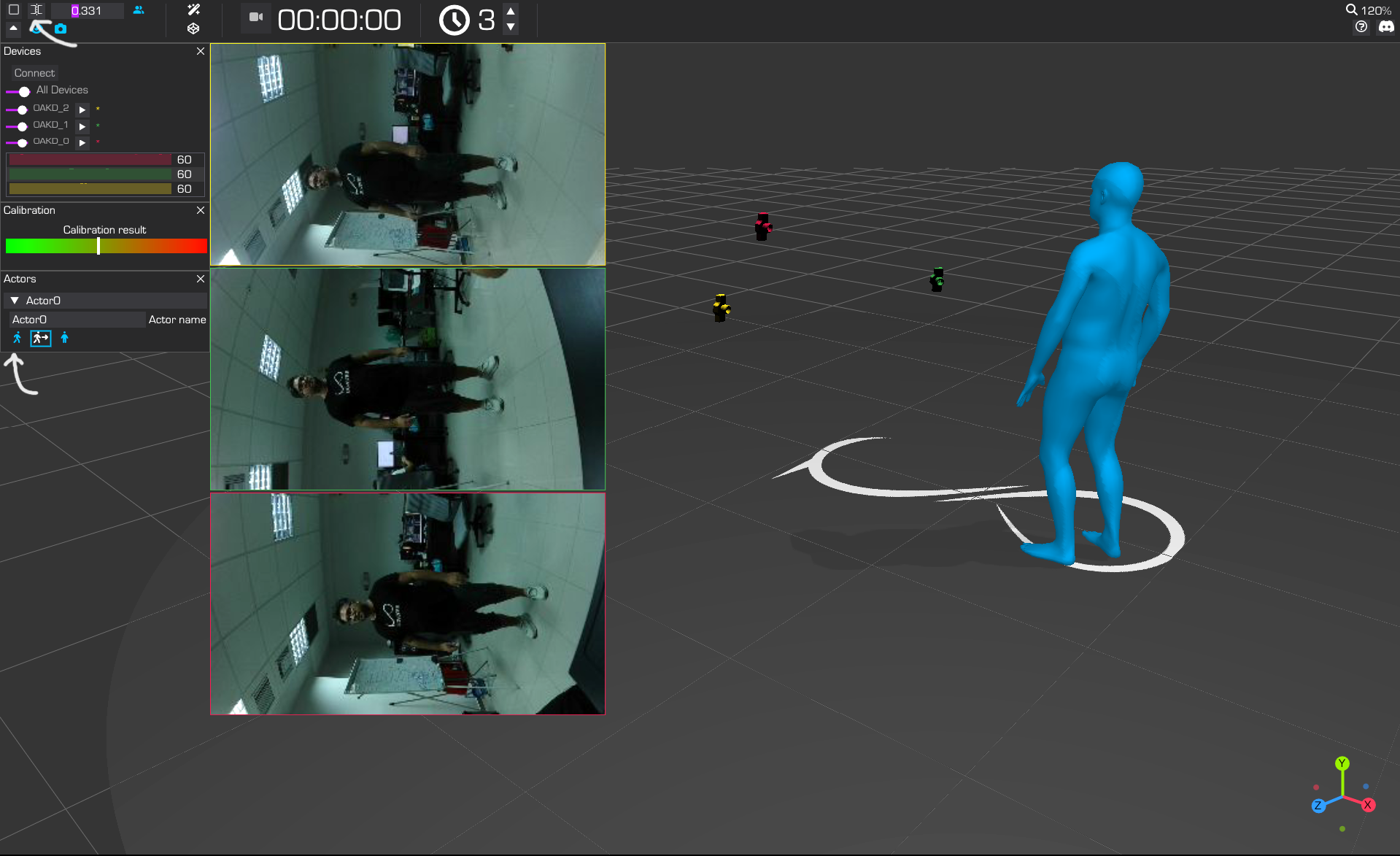 ### Step 3: Stabilize Capture with a Static Pose
* Have the actor hold a static pose (like an A-pose) to stabilize tracking.
### Step 3: Stabilize Capture with a Static Pose
* Have the actor hold a static pose (like an A-pose) to stabilize tracking.
 * Press the **Motion Tracking** button
  ## Calibrating for VRChat
Now you're ready to perform a Full-Body Tracking (FBT) calibration in the VRChat environment.
* Once continuous capture (Step 4) is active, Moverse Studio automatically begins searching for a T-pose.
* Put on your headset and grab the controllers. In the VRChat menu, find the FBT Calibration module — look for the **"Calibrate"** option at the bottom of the **Launch Pad**.
* Align your body with the avatar's **T-pose**. When you see the spheres' positions update, press both controller Triggers.
## Calibrating for VRChat
Now you're ready to perform a Full-Body Tracking (FBT) calibration in the VRChat environment.
* Once continuous capture (Step 4) is active, Moverse Studio automatically begins searching for a T-pose.
* Put on your headset and grab the controllers. In the VRChat menu, find the FBT Calibration module — look for the **"Calibrate"** option at the bottom of the **Launch Pad**.
* Align your body with the avatar's **T-pose**. When you see the spheres' positions update, press both controller Triggers.
 * Lower your arms to your sides and stay still for 10 seconds to ensure that the VRChat and Moverse Capture avatars are aligned.