

Step 1: Launching Moverse Studio
- Start Moverse Studio: Launch Moverse Studio from the Moverse Hub. Ensure your cameras are properly connected before you begin.
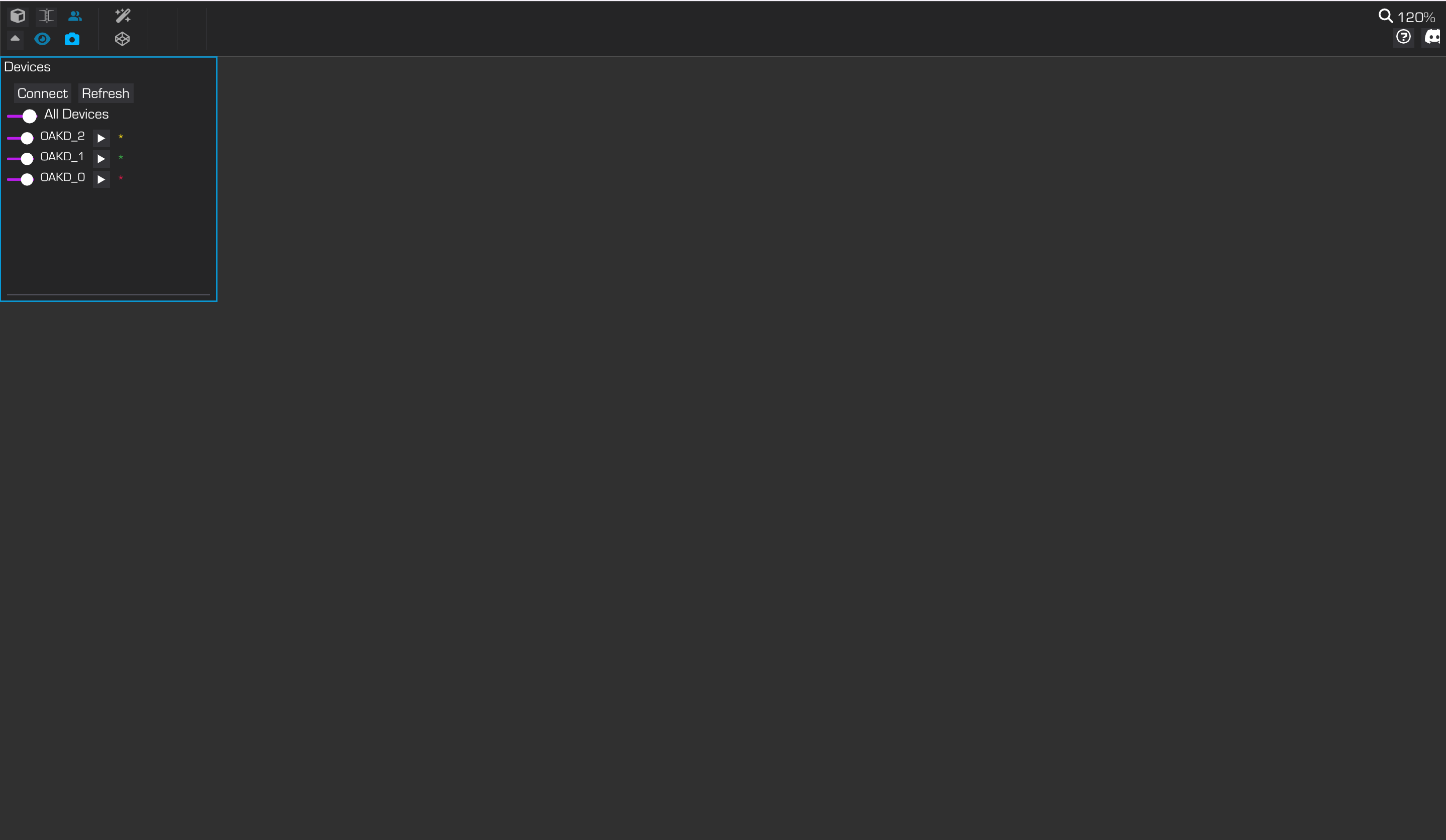
Moverse Studio initialization.
Step 2: Camera Selection and Connection
- Locate Camera Display: When Moverse Studio opens, your cameras, along with their names and metadata, will be displayed in the top-right corner of the user interface.
- Discover All Cameras: If one or more cameras are not visible, press “Refresh” to discover them.
- Connect: Press the ‘Connect’ button to start the connection process.
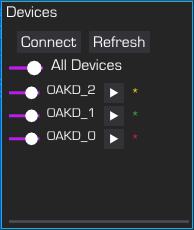
Camera selection and connection options.
Step 3: Streaming
- View Streams: The video streams will be visible in the viewer once it is set to 2D mode.
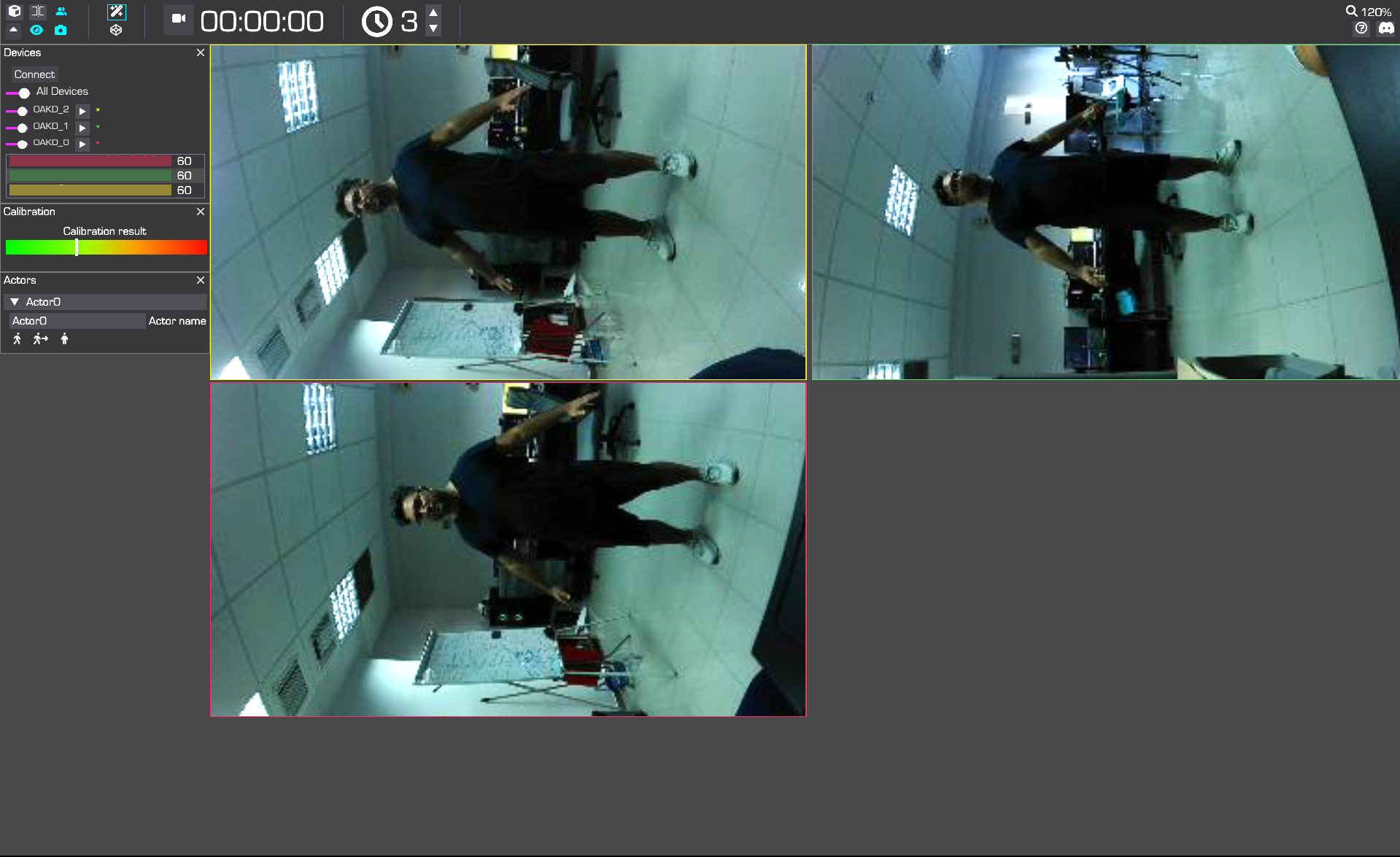
Proper camera connection and streaming.
- Check Streaming Status: After a successful connection, the cameras will begin streaming. The colored FPS bars should be full, indicating normal operation at the camera’s full frame rate.
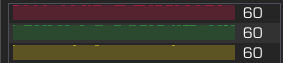
Full colored bars indicate FPS health.