

Step 1: Enter Capturing Space
- Enter the designated capturing space.
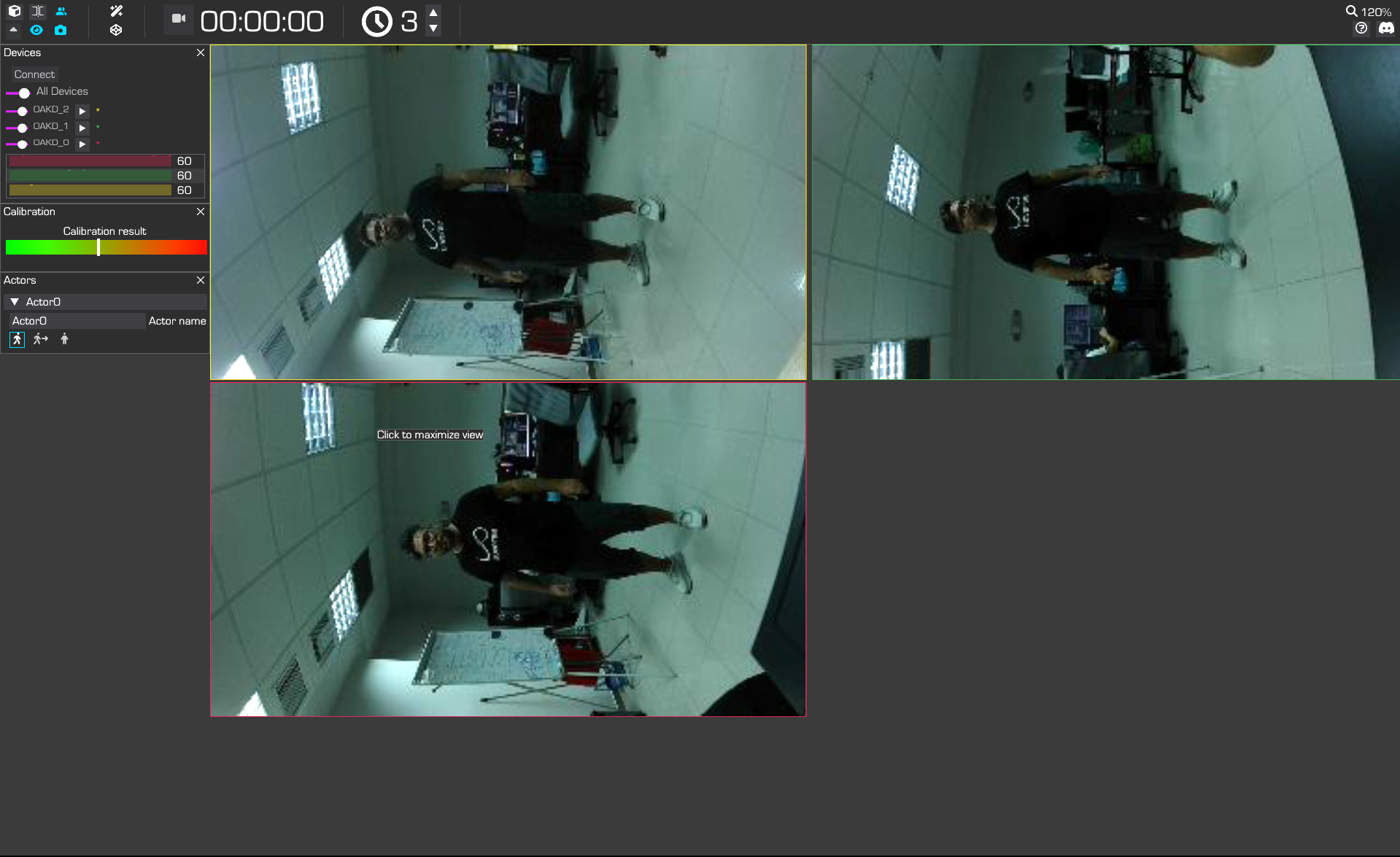
The user enters the capturing space
Step 2: Start Capture
- Switch to the “Splits viewport” mode by clicking the double-bracket icon (2nd button from the top left) in Moverse Studio.
- Press the Body Calibration button .
- The user’s body will instantly appear in the 3D viewer.
- Once your 3D body is visible, walk lightly inside the capturing space for 3-4 seconds.
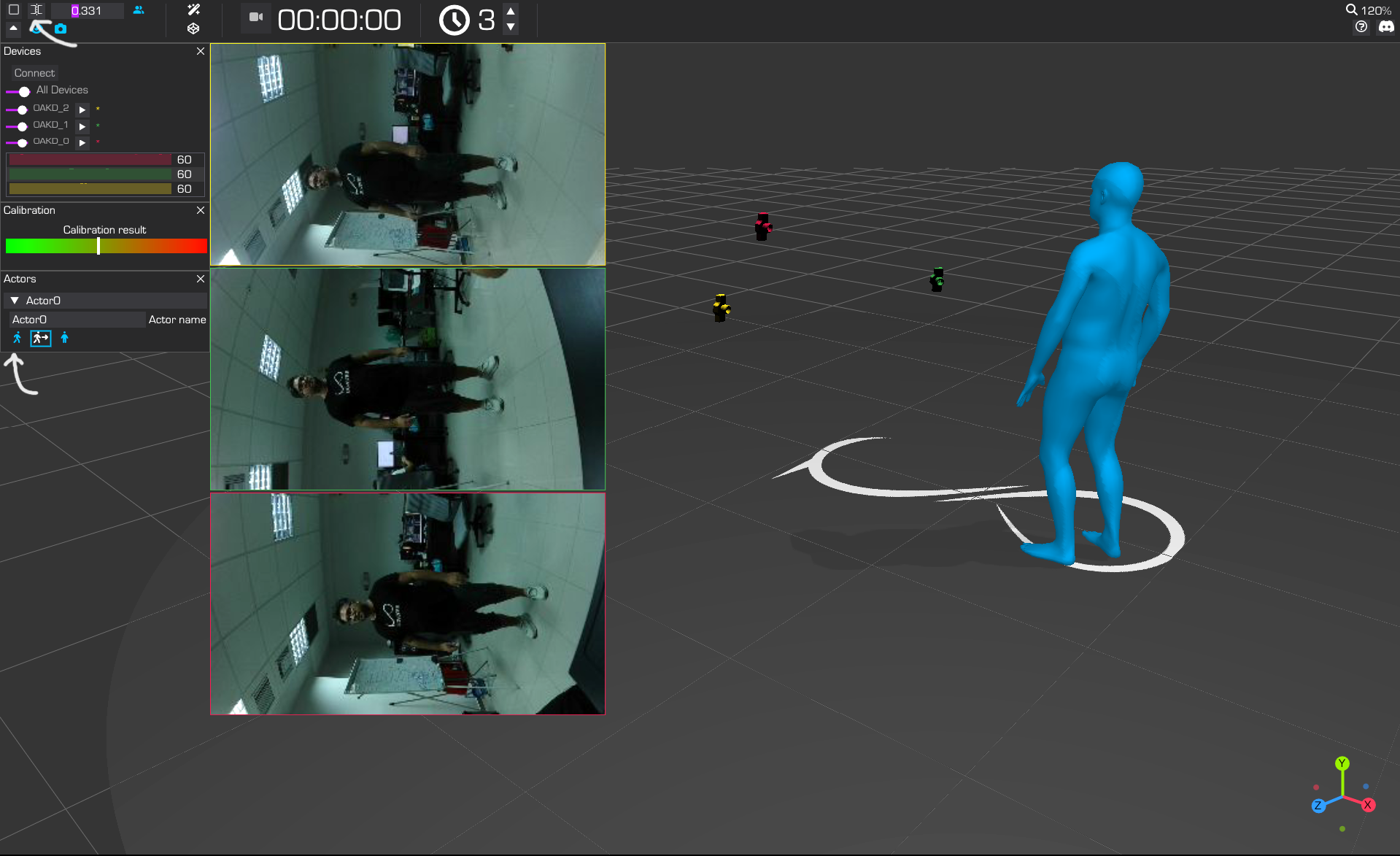
The body is visible in the 3D viewer once the body solving is on
Step 3: Stabilize Capture with a Static Pose
- Have the actor hold a static pose (like an A-pose) to stabilize tracking.
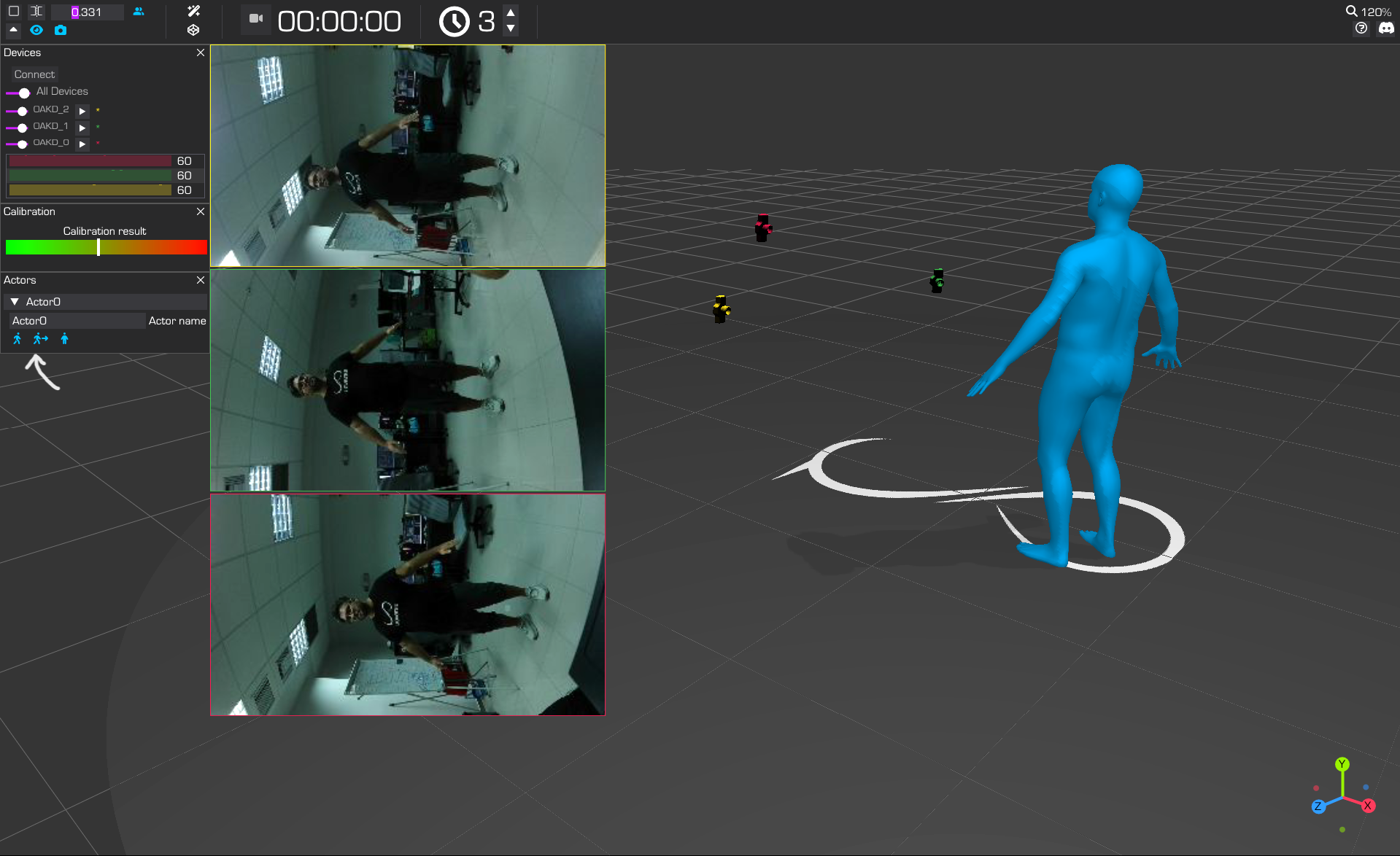
The actor stands in A-pose in the middle of the capturing space to initialize body tracking
- Press the Motion Tracking button to lock tracking.
Step 4: Continuous Capturing
- The system is now ready to record your full-body motion.
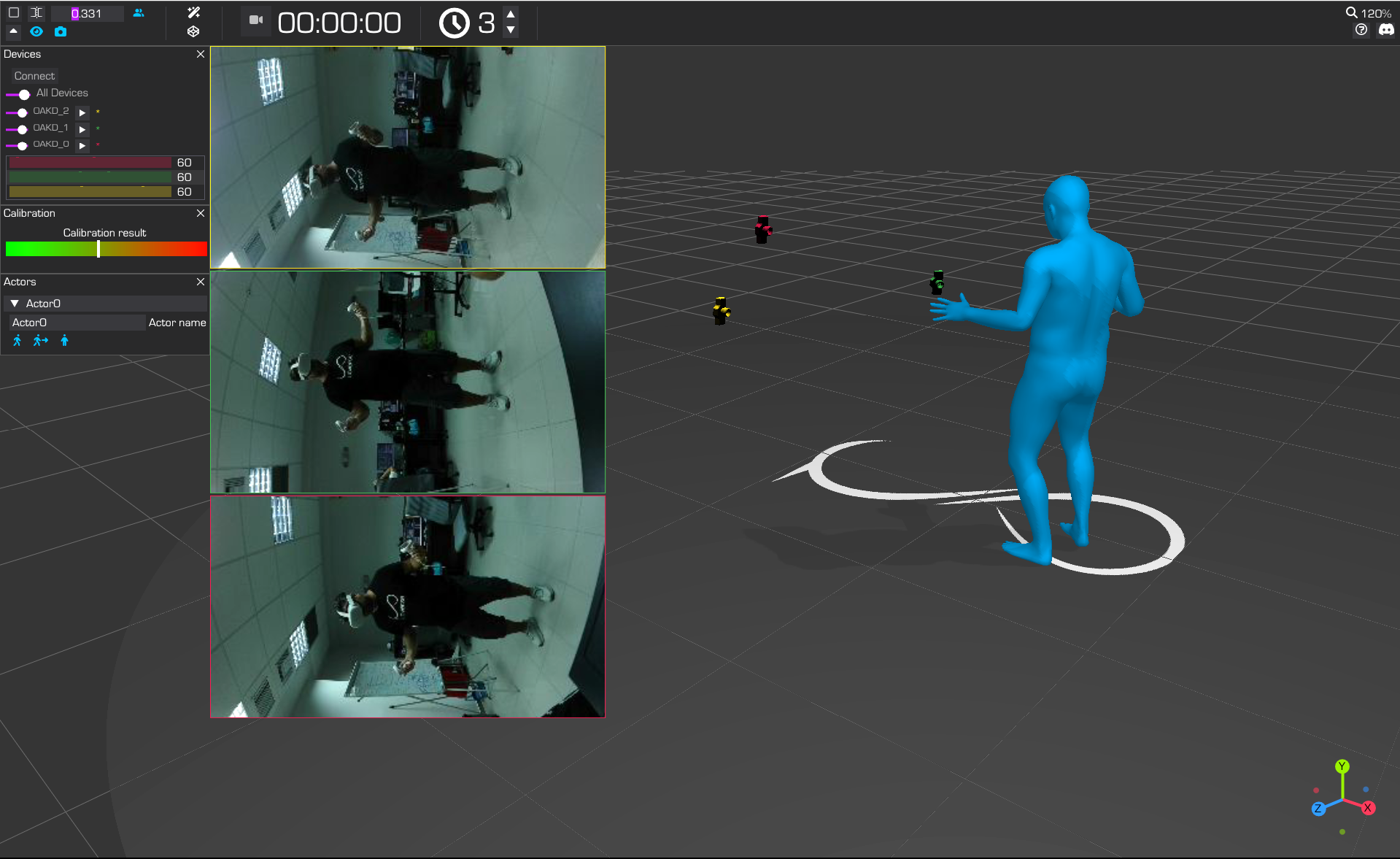
The actor is ready to freely perform into the capturing space
Calibrating for VRChat
Now you’re ready to perform a Full-Body Tracking (FBT) calibration in the VRChat environment.- Once continuous capture (Step 4) is active, Moverse Studio automatically begins searching for a T-pose.
- Put on your headset and grab the controllers. In the VRChat menu, find the FBT Calibration module — look for the “Calibrate” option at the bottom of the Launch Pad.
- Align your body with the avatar’s T-pose. When you see the spheres’ positions update, press both controller Triggers.
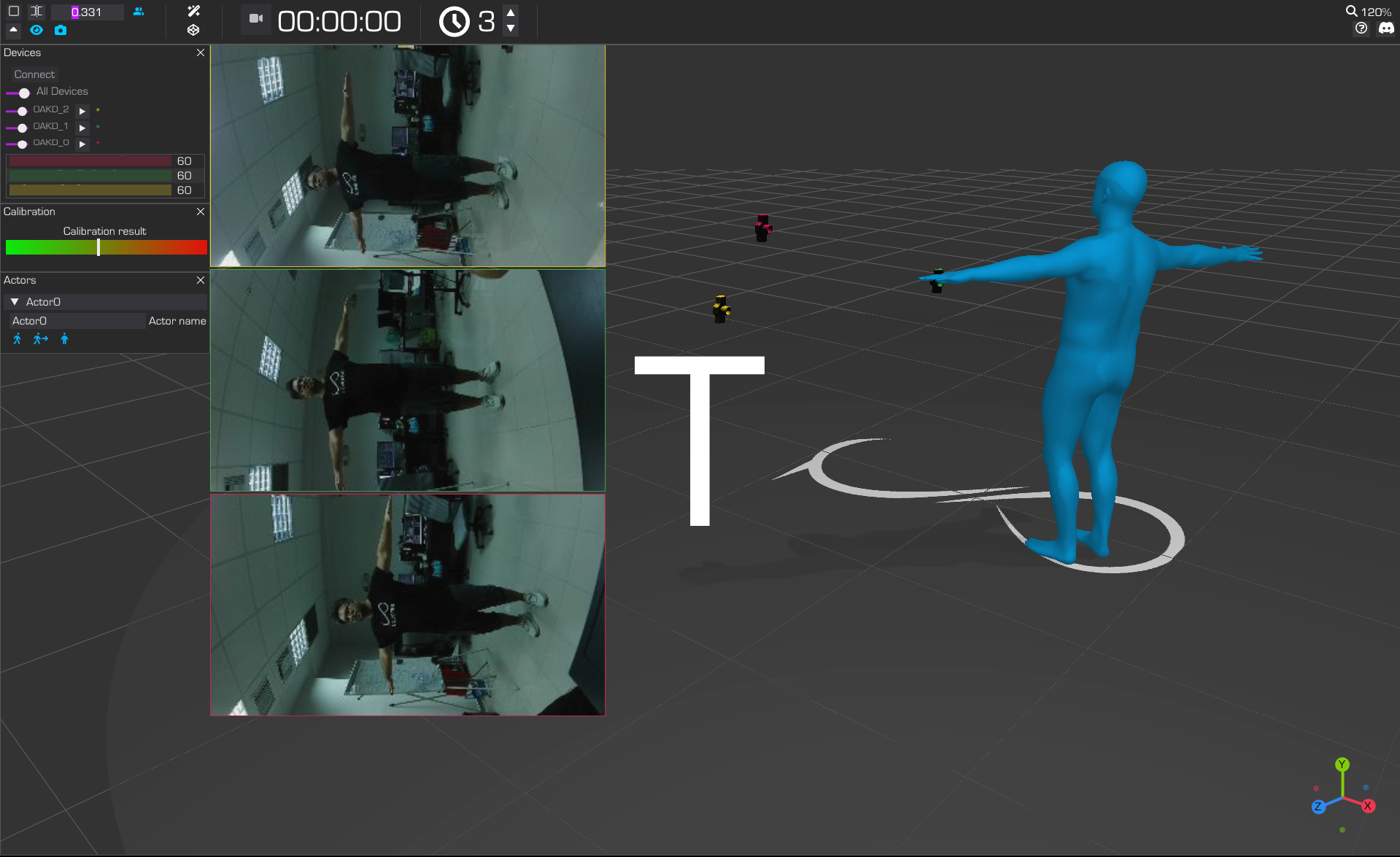
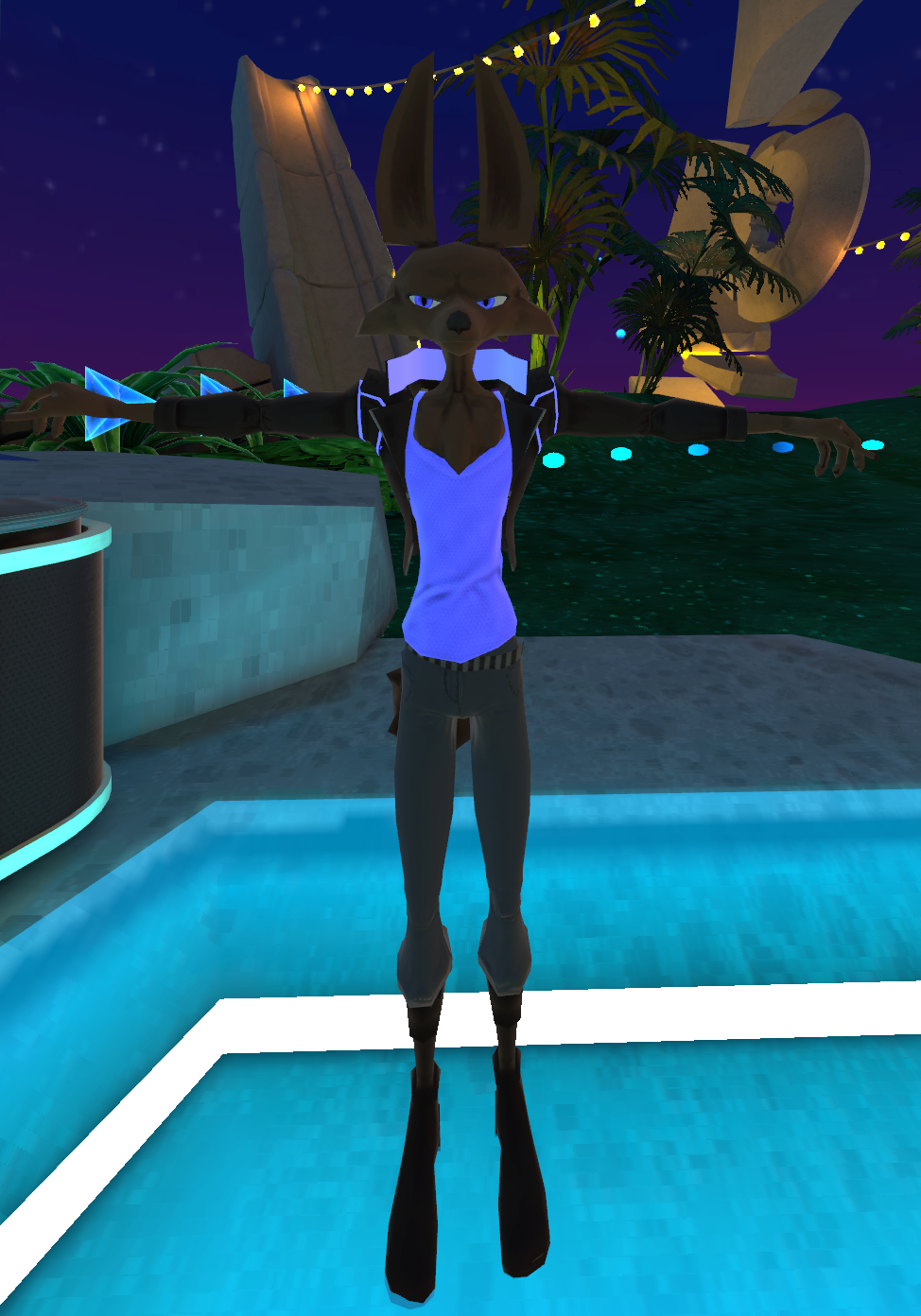
T-Pose calibration.
- Pressing the Triggers locks the T-pose calibration. In Moverse Studio, this is indicated by the T-pose button turning red (next to the “Motion Tracking” icon) and the ‘T’ icon overlaying the avatar also turning red.
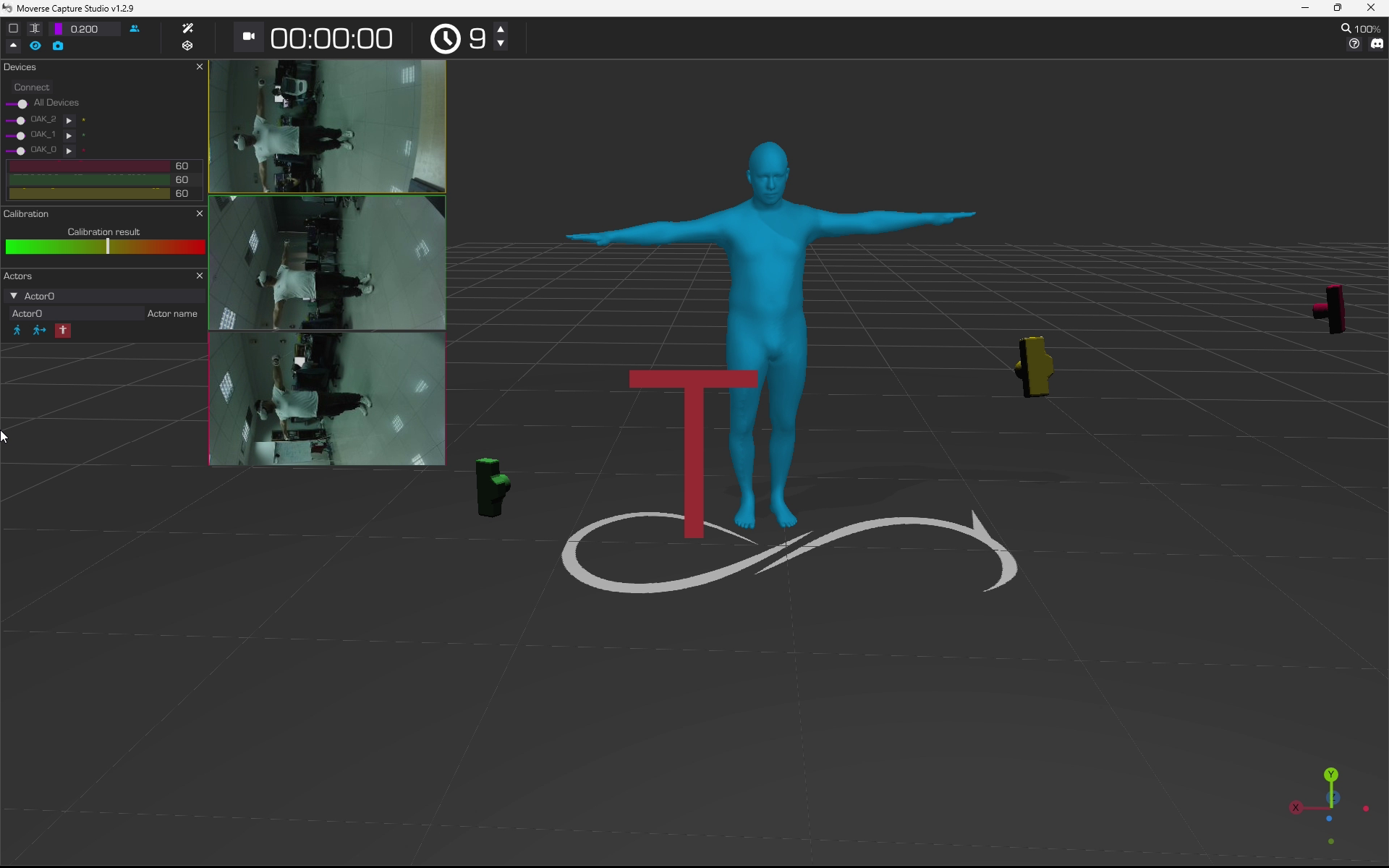
The T-pose button and the 'T' icon turn red to indicate Moverse Capture has successfully aligned with VRChat's FBT poses.
- Lower your arms to your sides and stay still for 10 seconds to ensure that the VRChat and Moverse Capture avatars are aligned.
- To perform a new calibration: First, unlock detection by pressing the red T-pose button in Moverse Studio. It will turn cyan, indicating the system is actively searching for a T-pose again.
Summary
The following video shows the end-to-end process, from motion tracking (Step 3) to FBT calibration in VRChat, as seen from the Moverse Studio perspective:
You are ready to perform. Enjoy!